
New Phone? How to Securely Transfer Your 2FA and Bankera App
Getting a new smartphone is always exciting. However, the process of migrating your digital life can sometimes feel a bit stressful, especially when it involves securing your financial assets. If you are staring at your shiny new screen and wondering how to retain access to your funds without triggering security lockouts, you are in the right place. In this guide, we will walk you through exactly how to transfer the Bankera app to a new phone and securely migrate your Two-Factor Authentication (2FA) so you can get back to managing your finances seamlessly.

Preparing Your Old Phone for the Switch
The most important rule of upgrading your device is not factory resetting your old phone until you have successfully logged into all your essential apps on the new one. Your old device is the key to a smooth transition.
Before you begin the transfer process, take a few minutes to prepare:
- Keep your old phone connected: ensure your old device is charged and connected to Wi-Fi. You will likely need it to receive confirmation prompts or view your current authenticator codes.
- Update your apps: open the App Store or Google Play Store on your old phone and make sure your Bankera app is updated to the latest version.
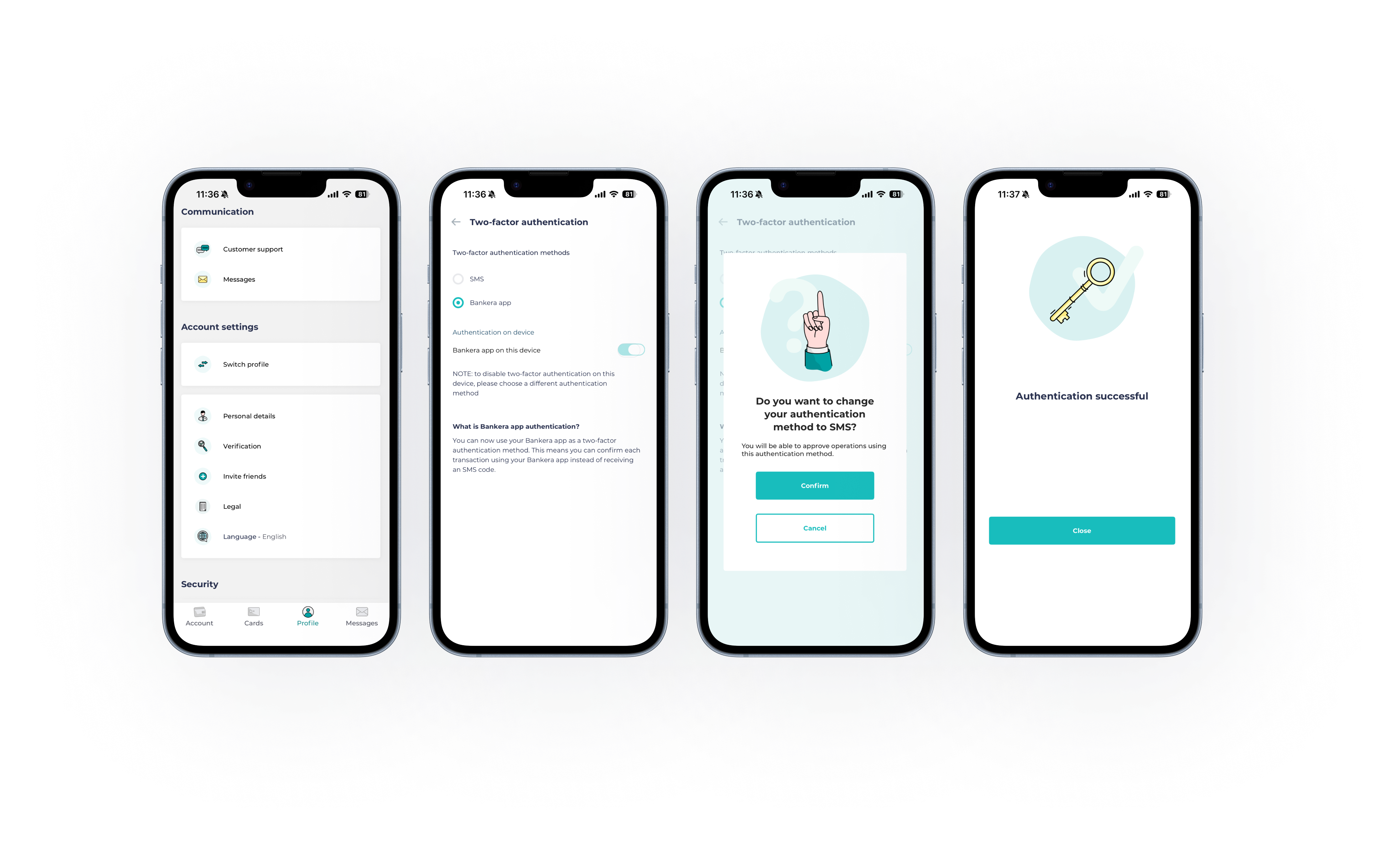
- Alternatively, switch your 2FA method: if you are worried about needing the old phone for app-based authenticator codes, you can temporarily change your Bankera 2FA setting to receive one-time passwords via SMS. These SMS codes can then be easily received and used on your new phone.
Downloading and Verifying the App on Your New Device
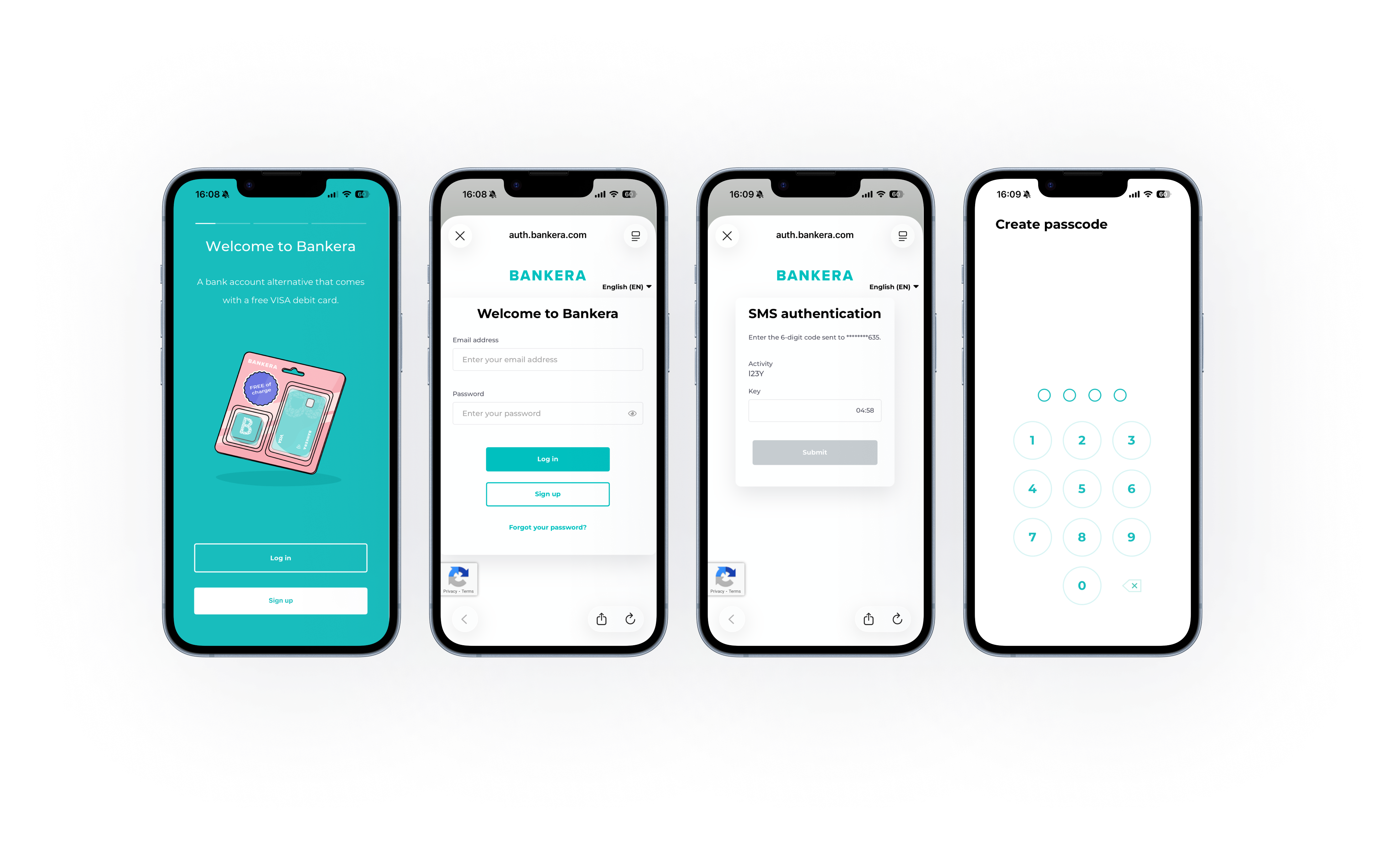
Once your old phone is ready, it is time to set up your new device Bankera login. For security reasons, Bankera app does not transfer login sessions via cloud backups (like iCloud or Google One). You will need to install the app and log in manually.
- Download the official app: navigate to the Apple App Store or Google Play Store on your new phone and download the official Bankera application. Avoid clicking third-party links to download financial apps.
- Enter your credentials: Open the app and enter your registered email address and password.
- Prepare for verification: After entering your password, the app will ask for 2FA confirmation on your old device or to enter a one-time code sent to you via SMSs if you set it so as per instructions in the section above.
- Generate a secure PIN: after successful login, the app will ask you to generate a secure four number PIN which will be used to confirm 2FA actions on the app.
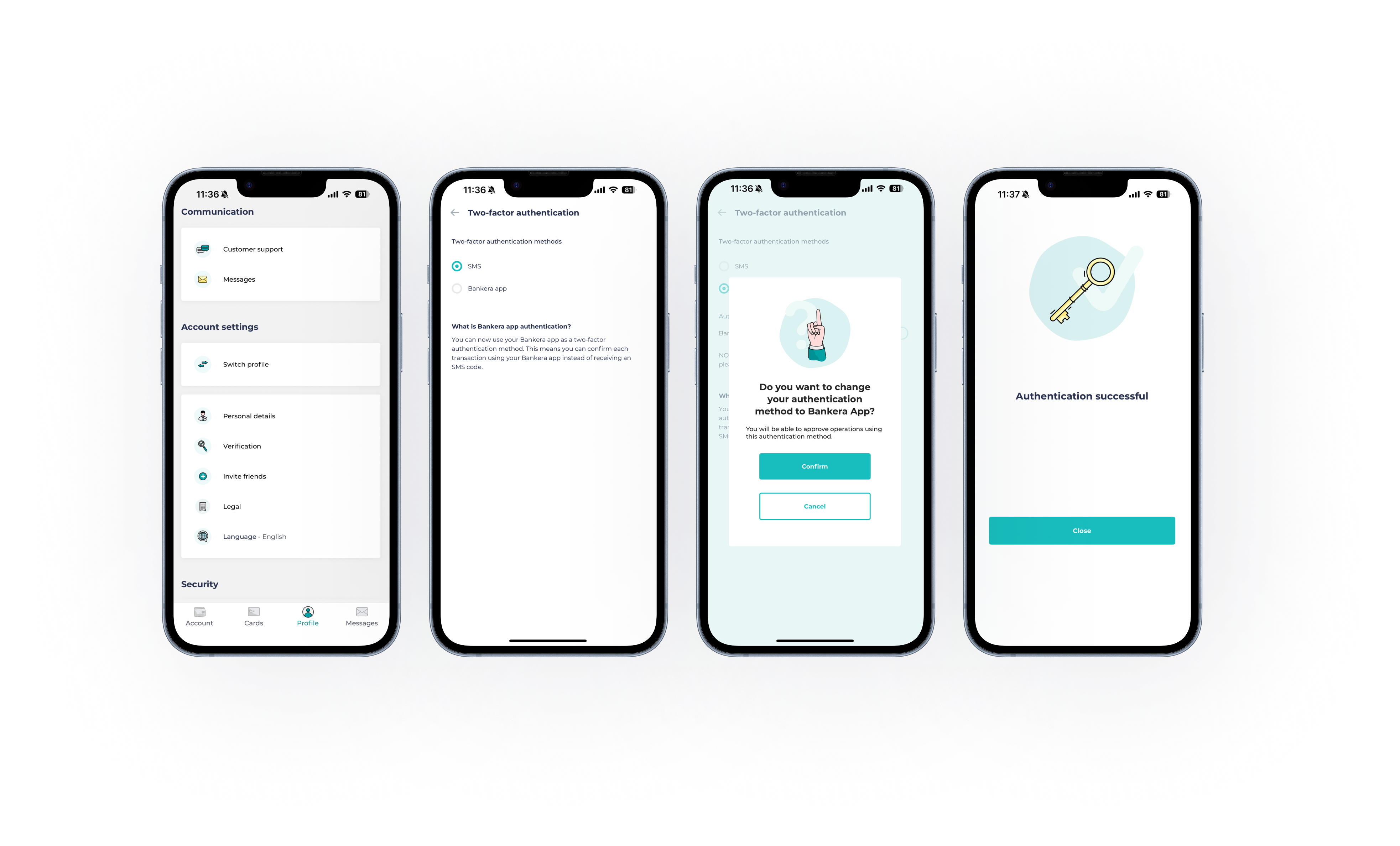
After that set the new device to confirm 2FA actions: after you login to the Bankera app for the first time on your new phone, the app will ask you to set it as the default to confirm 2FA actions. Agree to this and you are done.
What if I lost my old phone?
If your old device is broken or lost, you will need to recover access to your account by contacting our support team, as detailed in our FAQ. You will be required to perform a video verification to reset the 2FA option to SMS, allowing you to receive one-time codes that way.
Summary
Transitioning to a new smartphone should not mean losing access to your money. By keeping your old device active during the switch, you can transfer the Bankera app to a new phone in just a few minutes.
Are you ready to set up your new phone? Download the Bankera app for Apple or Android devices today and follow these steps to secure your account. If you encounter any issues not covered in this guide, our support team is always here to help you regain access quickly and safely!
25 March, 2026