
A Faster, More Secure Way to Confirm Your Online Card Payments is Here
You may already be using the Bankera mobile app as a second-factor authenticator (2FA) for logging into your account or confirming transfers. Today, we are excited to announce a significant enhancement to this feature: you can now use the Bankera mobile app to authenticate your online card purchases as well.

This update extends our most secure authentication method to your Bankera card, replacing the need for SMS one-time passwords (OTPs) when you shop online.
When you buy something online with your Bankera card, you often encounter an extra verification step. This security protocol, widely known as 3D Secure (3DS), is designed to protect you from fraud by confirming that it is really you making the purchase.
Historically, this check was completed by sending an SMS with a code to your phone. While common, this method has several drawbacks:
- It's less secure: SMS messages are not encrypted and can be vulnerable to attacks like “SIM swapping,” where a fraudster gains control of your phone number to intercept your security codes.
- It's unreliable: Receiving an SMS can be delayed or fail entirely if you have poor mobile reception or are travelling abroad.
- It's slow: You have to wait for the message, open it, memorise or copy the code, and then type it back into the payment window.
Our new app-based authentication solves all these problems.
How to Enable (or Disable) In-App 2FA
If you are already using the Bankera mobile app as your primary second-factor authenticator, you don't need to do anything. This feature is automatically enabled for your card payments.
If you are still using SMS for authentication, we highly encourage you to make the switch. Simply:
1. Open the Bankera App: Launch the Bankera application on your Android or iOS device.
2. Navigate to Security Settings: From the main screen, tap on the “Profile” tab (third icon from the left at the bottom of the screen), scroll down to the “Security” section and select “Two-factor authentication.”
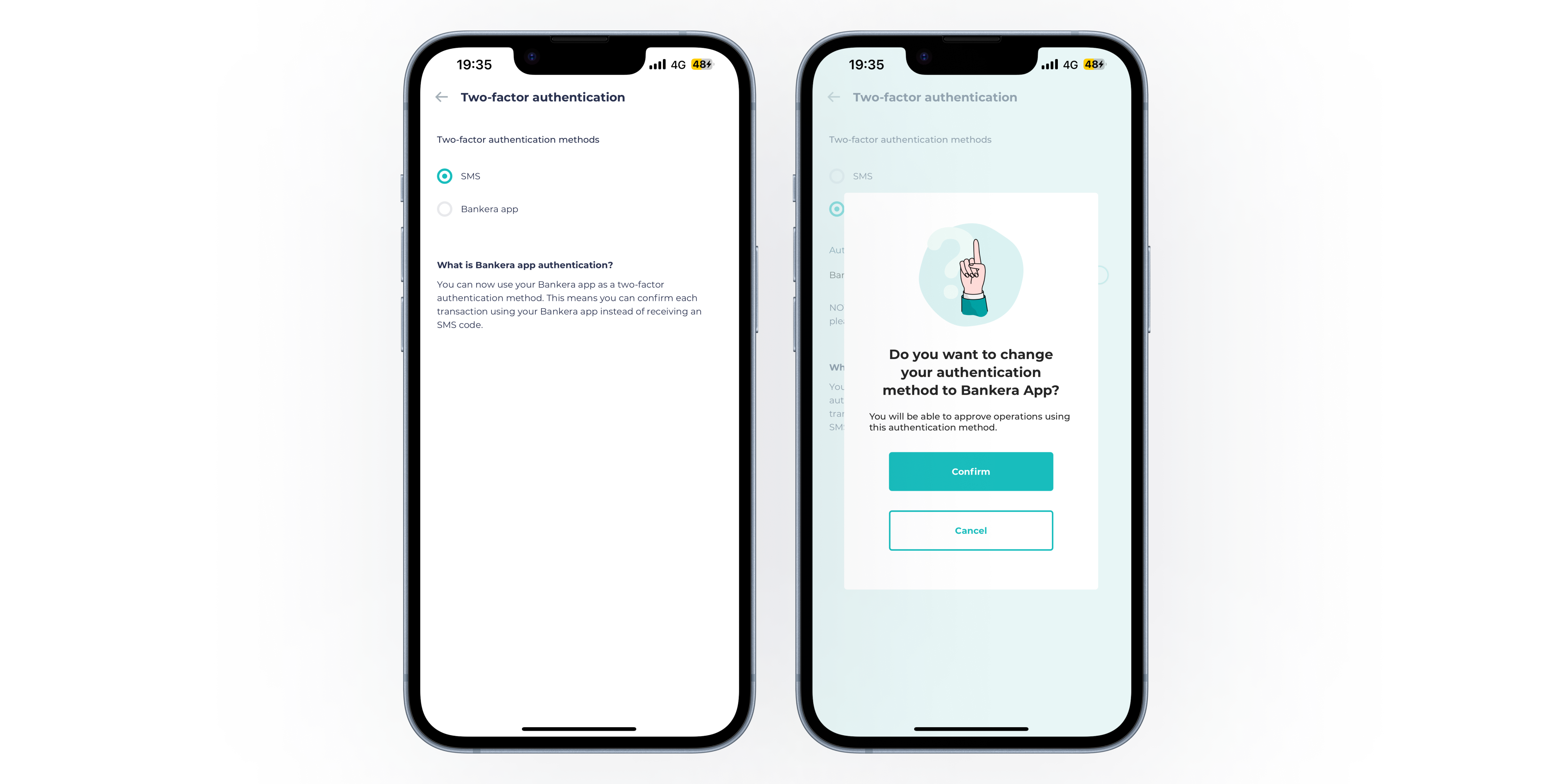
3. Toggle In-App 2FA: You'll see an option for "Bankera App." Simply toggle the switch to "On." Make sure that the toggle “Bankera app on this device” is toggled on to receive the authentication notifications on that particular device.
4. Confirm Your Choice: The app will prompt you to confirm your decision. Follow the on-screen instructions to finalize the activation. You may need to enter your PIN or use biometrics to verify.
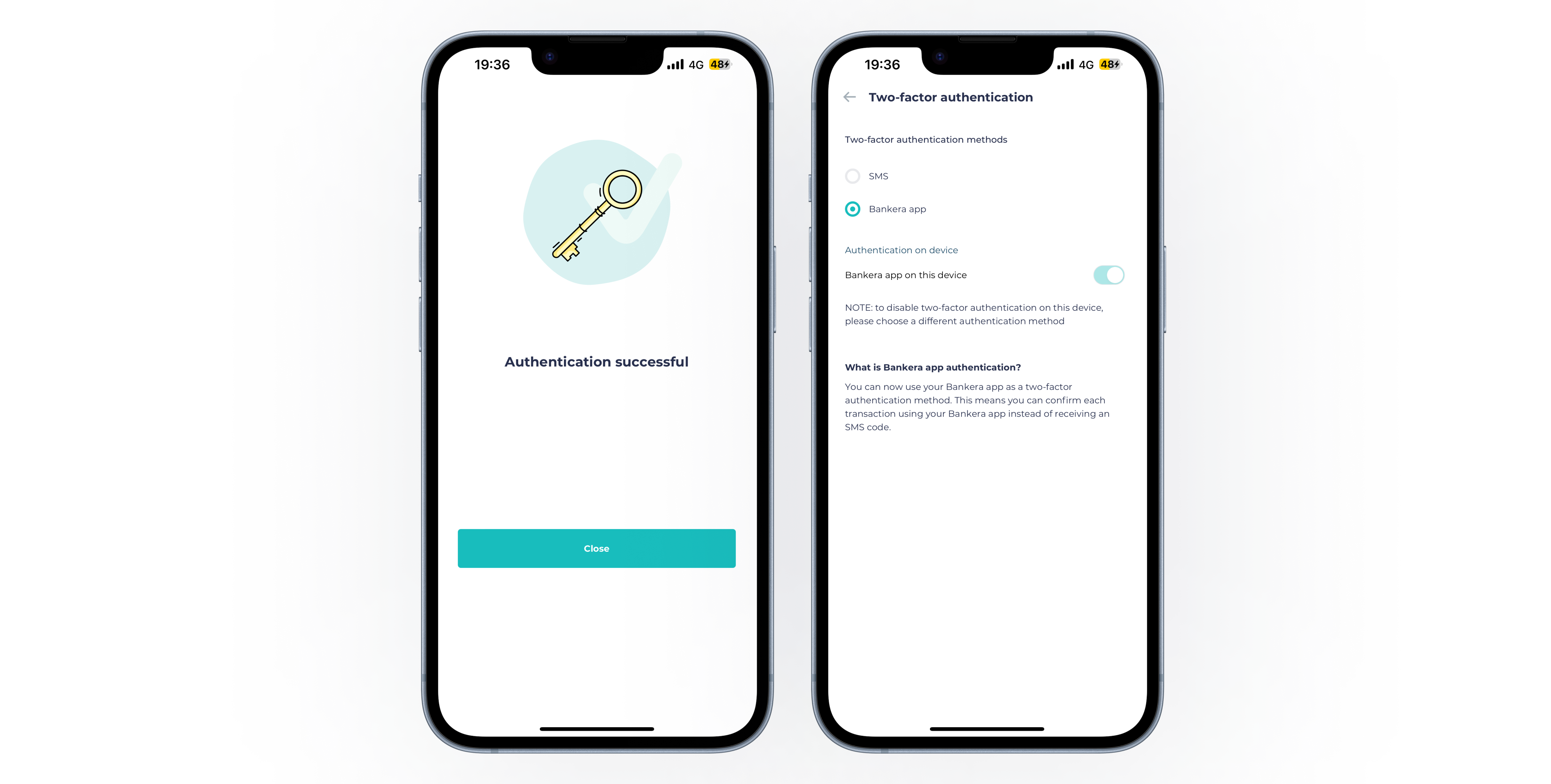
You're all set! From now on, you'll receive card e-shop payment, login and transaction confirmation codes directly within your Bankera app, providing a more secure and reliable experience.
If you ever wish to switch back to SMS 2FA, simply follow the same steps and toggle the 2FA methods option to “SMS”.
30 October, 2025